| この記事の要点 |
|
SwiftUI で地図を表示
iOS 14 から MapKit モジュールが SwiftUI 対応。iOS 17 で大幅にリニューアルされ、宣言的な記述が更にスッキリしました。
1. 最小例 (iOS 14-16)
import SwiftUI
import MapKit

struct ContentView: View {
    @State private var region = MKCoordinateRegion(
        center: CLLocationCoordinate2D(latitude: 35.6586, longitude: 139.7454),  // 東京タワー
        span: MKCoordinateSpan(latitudeDelta: 0.05, longitudeDelta: 0.05)
    )

    var body: some View {
        Map(coordinateRegion: $region)
            .ignoresSafeArea()
    }
}
2. iOS 17+ の新 API
import SwiftUI
import MapKit

struct ContentView: View {
    @State private var position: MapCameraPosition = .region(
        MKCoordinateRegion(
            center: CLLocationCoordinate2D(latitude: 35.6586, longitude: 139.7454),
            span: MKCoordinateSpan(latitudeDelta: 0.05, longitudeDelta: 0.05)
        )
    )

    var body: some View {
        Map(position: $position) {
            Marker("東京タワー", coordinate: .init(latitude: 35.6586, longitude: 139.7454))
                .tint(.red)

            Marker("スカイツリー", systemImage: "antenna.radiowaves.left.and.right",
                   coordinate: .init(latitude: 35.7101, longitude: 139.8107))
                .tint(.blue)

            Annotation("カスタム", coordinate: .init(latitude: 35.681, longitude: 139.767)) {
                VStack {
                    Image(systemName: "star.fill")
                        .foregroundStyle(.yellow)
                    Text("東京駅")
                        .font(.caption)
                }
                .padding(6)
                .background(.white)
                .clipShape(Capsule())
            }
        }
        .mapStyle(.standard(elevation: .realistic))  // .standard / .hybrid / .imagery
        .mapControls {
            MapUserLocationButton()
            MapCompass()
            MapScaleView()
        }
        .ignoresSafeArea()
    }
}
3. mapStyle (地図の種類)
| スタイル | 説明 |
|---|---|
.standard | 標準地図 |
.standard(elevation: .realistic) | 3D 標高表示 |
.hybrid | 衛星写真 + 道路名 |
.imagery | 衛星写真のみ |
4. 現在地表示 (位置情報許可)
Info.plist 設定 (必須)
<!-- Info.plist -->
<key>NSLocationWhenInUseUsageDescription</key>
<string>現在地周辺の店舗を表示するために位置情報を使用します</string>

<!-- バックグラウンドでも使う場合 -->
<key>NSLocationAlwaysAndWhenInUseUsageDescription</key>
<string>バックグラウンドでも位置追跡を行います</string>
CLLocationManager で許可リクエスト
import CoreLocation
import Combine

final class LocationManager: NSObject, ObservableObject, CLLocationManagerDelegate {
    private let manager = CLLocationManager()
    @Published var location: CLLocation?
    @Published var status: CLAuthorizationStatus = .notDetermined

    override init() {
        super.init()
        manager.delegate = self
        manager.desiredAccuracy = kCLLocationAccuracyBest
    }

    func requestAuthorization() {
        manager.requestWhenInUseAuthorization()
    }

    func startUpdating() {
        manager.startUpdatingLocation()
    }

    // MARK: - Delegate
    func locationManager(_ manager: CLLocationManager,
                         didChangeAuthorization status: CLAuthorizationStatus) {
        self.status = status
        if status == .authorizedWhenInUse || status == .authorizedAlways {
            manager.startUpdatingLocation()
        }
    }

    func locationManager(_ manager: CLLocationManager,
                         didUpdateLocations locations: [CLLocation]) {
        self.location = locations.last
    }
}
struct ContentView: View {
@StateObject private var lm = LocationManager()
@State private var position: MapCameraPosition = .userLocation(fallback: .automatic)
var body: some View {
Map(position: $position) {
UserAnnotation() // 現在地のドット
}
.mapControls {
MapUserLocationButton() // 現在地ボタン
}
.onAppear {
lm.requestAuthorization()
}
}
}5. ピンタップでアクション
struct Shop: Identifiable {
    let id = UUID()
    let name: String
    let coordinate: CLLocationCoordinate2D
}

struct ContentView: View {
    @State private var selected: Shop?

    let shops = [
        Shop(name: "東京駅", coordinate: .init(latitude: 35.681, longitude: 139.767)),
        Shop(name: "渋谷",   coordinate: .init(latitude: 35.659, longitude: 139.700)),
    ]

    var body: some View {
        Map(selection: $selected) {
            ForEach(shops) { shop in
                Marker(shop.name, coordinate: shop.coordinate)
                    .tag(shop)
            }
        }
        .sheet(item: $selected) { shop in
            ShopDetailView(shop: shop)
        }
    }
}
6. 検索 (MKLocalSearch)
import MapKit

func search(text: String) async throws -> [MKMapItem] {
    let request = MKLocalSearch.Request()
    request.naturalLanguageQuery = text
    request.region = MKCoordinateRegion(
        center: CLLocationCoordinate2D(latitude: 35.68, longitude: 139.76),
        span: MKCoordinateSpan(latitudeDelta: 0.1, longitudeDelta: 0.1)
    )
    let search = MKLocalSearch(request: request)
    let response = try await search.start()
    return response.mapItems
}

// 利用
Task {
    let items = try await search(text: "ラーメン")
    for item in items {
        print(item.name ?? "", item.placemark.coordinate)
    }
}
7. ルート描画 (MKDirections)
import MapKit

func calculateRoute(from: CLLocationCoordinate2D,
                    to: CLLocationCoordinate2D) async throws -> MKRoute? {
    let request = MKDirections.Request()
    request.source = MKMapItem(placemark: MKPlacemark(coordinate: from))
    request.destination = MKMapItem(placemark: MKPlacemark(coordinate: to))
    request.transportType = .automobile  // .walking / .transit / .automobile

    let directions = MKDirections(request: request)
    let response = try await directions.calculate()
    return response.routes.first
}

// SwiftUI で描画 (iOS 17+)
struct RouteMap: View {
    @State private var route: MKRoute?

    var body: some View {
        Map {
            if let route {
                MapPolyline(route.polyline)
                    .stroke(.blue, lineWidth: 5)
            }
        }
        .task {
            route = try? await calculateRoute(
                from: .init(latitude: 35.681, longitude: 139.767),
                to:   .init(latitude: 35.659, longitude: 139.700)
            )
        }
    }
}
UIKit (MKMapView) での実装
import UIKit
import MapKit

class MapViewController: UIViewController, MKMapViewDelegate {
    let mapView = MKMapView()

    override func viewDidLoad() {
        super.viewDidLoad()
        mapView.frame = view.bounds
        mapView.autoresizingMask = [.flexibleWidth, .flexibleHeight]
        mapView.delegate = self
        mapView.showsUserLocation = true
        view.addSubview(mapView)

        // 中心
        let center = CLLocationCoordinate2D(latitude: 35.6586, longitude: 139.7454)
        let region = MKCoordinateRegion(center: center,
                                        latitudinalMeters: 1000,
                                        longitudinalMeters: 1000)
        mapView.setRegion(region, animated: true)

        // ピン追加
        let pin = MKPointAnnotation()
        pin.coordinate = center
        pin.title = "東京タワー"
        mapView.addAnnotation(pin)
    }

    // カスタムアノテーション
    func mapView(_ mapView: MKMapView,
                 viewFor annotation: MKAnnotation) -> MKAnnotationView? {
        guard !(annotation is MKUserLocation) else { return nil }
        let id = "pin"
        let view = mapView.dequeueReusableAnnotationView(withIdentifier: id)
            ?? MKMarkerAnnotationView(annotation: annotation, reuseIdentifier: id)
        view.canShowCallout = true
        (view as? MKMarkerAnnotationView)?.glyphImage = UIImage(systemName: "star.fill")
        (view as? MKMarkerAnnotationView)?.markerTintColor = .systemRed
        return view
    }
}
パフォーマンス・運用 Tips
- 大量のピン (>500) はクラスタリング (
clusteringIdentifier) で集約 - カメラ移動が頻繁なら
onMapCameraChangeで debounce - Apple Maps の API は無料 (App Store 配布アプリ)。Google Maps SDK は登録 + 課金
- Look Around は
MKLookAroundViewController(iOS 16+) - 3D 建物は
showsBuildings = true
FAQ
Q: 地図が真っ青で表示されない
A: シミュレータの位置設定 (Features → Location) を確認。実機なら Wi-Fi 接続を確認。
Q: 現在地ピンが動かない
A: シミュレータは Features → Location → Custom Location で座標入力 or City Run などのプリセット利用。
Q: 中国本土で表示がズレる
A: 中国は GCJ-02 座標系のため WGS-84 とズレが生じる。Apple Maps は自動補正されますが、サードパーティ座標を流すと不整合。
Q: オフラインで地図を見たい
A: Apple Maps は標準でオフライン対応 (iOS 17+)。事前に範囲をダウンロード可能。
📸 参考画像
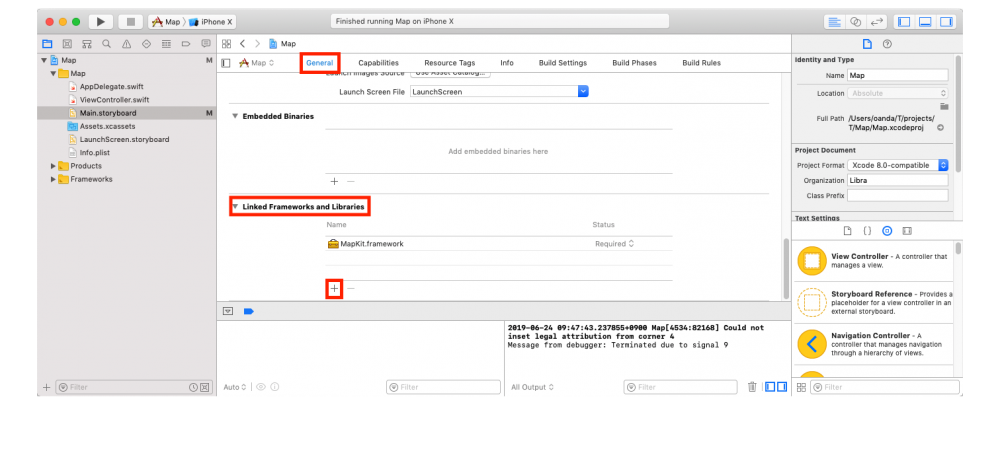
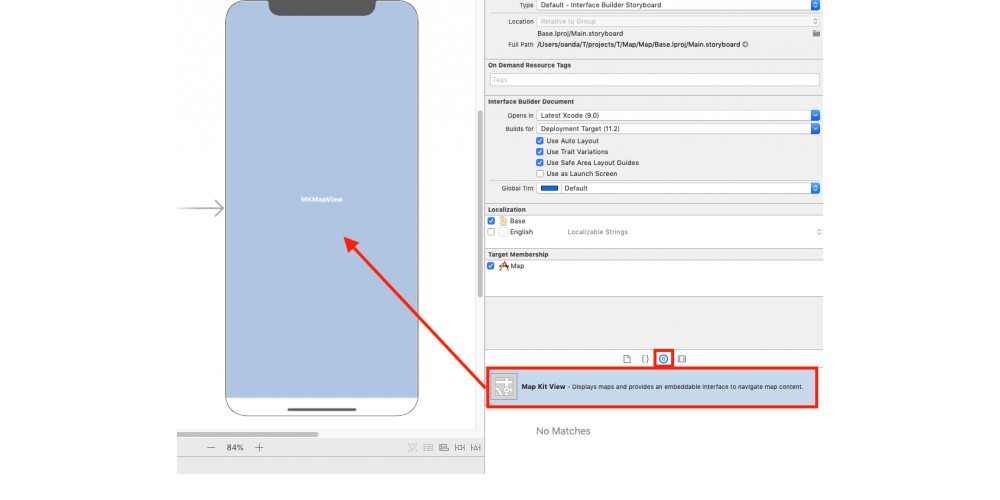
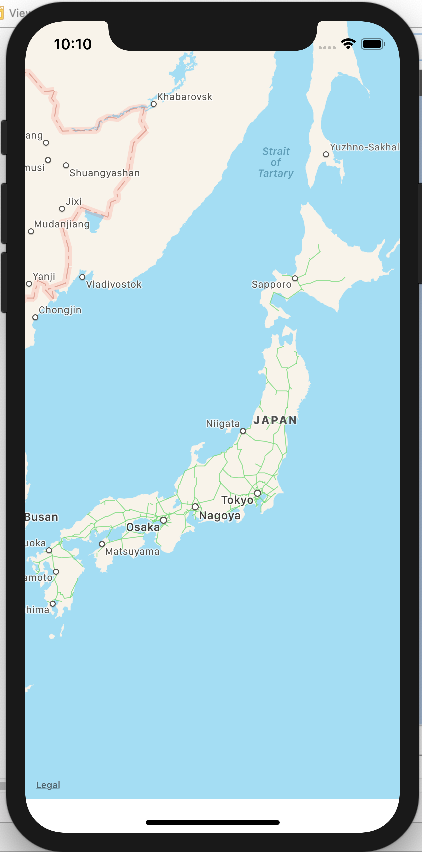
※ 旧バージョンから引き継いだ参考画像です。手順・図解の補助としてご覧ください。
子ページ
子ページはありません
人気ページ
- 1 Eclipseで「サーバーに追加または除去できるリソースがありません。」の原因と対処法
- 2 tomcat の起動 / 停止ログと catalina.log・catalina.out の違い
- 3 JavaScript で base URL を取得する方法|window.location.origin
- 4 YouTube Data API v3 エラー一覧|403・400・404 の原因と対処
- 5 Laravel エラー一覧|500/Blade/DB 接続/ルーティングの代表エラー
- 6 3Dグラフィックスとは|モデリング/レンダリング/主要ソフトウェア (Blender / Maya)
- 7 Spring Frameworkのアノテーション一覧
- 8 【Spring】@Valueアノテーションとは
- 9 CATALINA_HOME の確認方法 (Linux / Mac)
- 10 【Spring】@Autowiredアノテーションとは
最近更新/作成されたページ
- プロジェクトをTomcatプロジェクトとして認識させる方法 2026-10-07 22:32:50
- MySQLの1366 Incorrect string value|Laravelの文字コード・絵文字エラー 2026-10-07 21:54:03
- curlの証明書ホスト名不一致|旧エラー51・現行60の確認と対処 2026-10-07 21:54:03
- LaravelのMassAssignmentException|fillableの原因と安全な対処 2026-10-07 21:54:03
- Eclipse で Tomcat の起動ログがコンソールに出ない時の確認手順 2026-10-07 21:54:02
- MySQLにおける中央値(Median)の導き方(バージョン8未満) 2026-10-07 13:49:45
- getInputForward 2026-10-07 13:41:15
- JSONから配列に変換 2026-10-07 13:41:15
- ビューから値をモデルに格納しコントローラーで受け取る方法 2026-10-07 13:23:41
- Laravelのテーブル作成と定義変更|マイグレーション・up/down・注意点 2026-10-07 13:23:41
- NumPy 配列に要素を追加する方法 (append / concatenate) 2026-10-07 13:23:41
- MariaDB・MySQLで現在日時を取得する方法|NOW・タイムゾーン・保存型 2026-10-07 13:13:36
- 【django】テンプレートで定数を使用する方法 2026-10-07 13:10:15
- Spring BootにおけるApplication.propertiesの環境依存設定の分割方法 2026-10-07 12:09:35
- Not supported for DML operations【Springエラー】 2026-10-07 11:09:38