
タイトル: 【Xcode/Swift】ImageViewのContentMode一覧
SEOタイトル: Xcode/Swift UIImageView ContentMode 完全ガイド
| この記事の要点 |
|
contentMode とは
UIImageView を使うとき、View のサイズと画像本来のサイズが一致しないのが普通です。このときどう表示するかを決めるのが contentMode プロパティです。
import UIKit

let imageView = UIImageView()
imageView.image = UIImage(named: "sample")

// 既定値は .scaleToFill(縦横バラバラに伸縮 → 歪む)
imageView.contentMode = .scaleAspectFit   // 推奨パターン1
imageView.contentMode = .scaleAspectFill  // 推奨パターン2
imageView.clipsToBounds = true            // scaleAspectFill では必須
contentMode 13 種類の一覧
| 値 | 挙動 | 典型用途 |
|---|---|---|
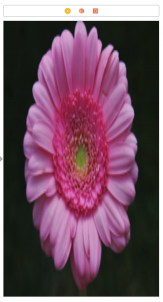
| scaleToFill(既定) | View 全体に合わせて伸縮(アスペクト無視 → 歪む) | 非推奨 |
| scaleAspectFit | アスペクト維持で内包、余白できる | サムネイル / 写真表示 |
| scaleAspectFill | アスペクト維持で覆う、はみ出す | 背景 / ヒーロー画像 |
| redraw | boundsが変わるたびに setNeedsDisplay 呼び出し | カスタム描画 |
| center | 原寸表示・中央配置 | アイコン |
| top | 原寸・上揃え | |
| bottom | 原寸・下揃え | |
| left | 原寸・左揃え | |
| right | 原寸・右揃え | |
| topLeft | 原寸・左上揃え | |
| topRight | 原寸・右上揃え | |
| bottomLeft | 原寸・左下揃え | |
| bottomRight | 原寸・右下揃え |
scaleToFill(既定値・歪む)
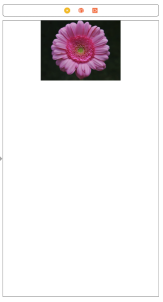
View の縦横にぴったり合わせるため、画像本来のアスペクト比を無視して縦と横を独立に伸縮します。横長の写真を縦長 View に入れると不自然に縦伸びします。
scaleAspectFit(内包・余白)
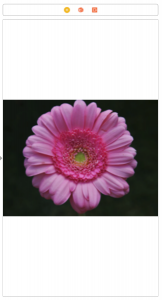
アスペクト比を維持しながら View 内に収まるように縮小(または拡大)します。View の長手側に余白ができます。サムネイル一覧で安全な選択です。

// IBOutlet 経由
@IBOutlet weak var imageView: UIImageView!

override func viewDidLoad() {
    super.viewDidLoad()
    imageView.contentMode = .scaleAspectFit
    imageView.backgroundColor = .systemGray6  // 余白の色を明示
}
scaleAspectFill(覆う・切れる)
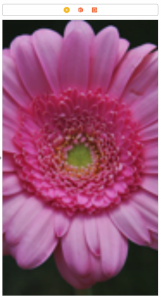
アスペクト比を維持しながらView を完全に覆う大きさまで拡大します。短手側に合わせるため、長手方向で画像がはみ出してカットされます。必ず clipsToBounds = true をセットしないと、View 外側まで描画されてレイアウトが崩れます。
imageView.contentMode = .scaleAspectFill
imageView.clipsToBounds = true   // ★ これを忘れると View からはみ出す

// Storyboard では Attribute Inspector → Drawing → Clip to Bounds にチェック
center(中央・原寸)
画像を本来のサイズのまま View の中央に配置します。アイコンを表示する場合や、画像 ≤ View サイズが保証される場合に使います。
top / bottom / left / right と 四隅揃え
原寸のまま View 内で位置揃えするモード。画像が View より大きい場合は反対側がカットされます。
| 値 | 揃え位置 |
|---|---|
| top | 上端中央 |
| bottom | 下端中央 |
| left | 左端中央 |
| right | 右端中央 |
| topLeft | 左上 |
| topRight | 右上 |
| bottomLeft | 左下 |
| bottomRight | 右下 |
scaleAspectFit と Fill の選択ガイド
| 場面 | 推奨 | 理由 |
|---|---|---|
| 商品サムネイル一覧 | scaleAspectFit | 全体が見える、切れない |
| プロフィールアイコン(円) | scaleAspectFill | 余白なしで埋める |
| ヒーロー画像(横長バナー) | scaleAspectFill | 画面いっぱい |
| 写真詳細表示 | scaleAspectFit | 切れずに全体 |
| 背景画像 | scaleAspectFill | View 全面を覆う |
Storyboard / Interface Builder での設定
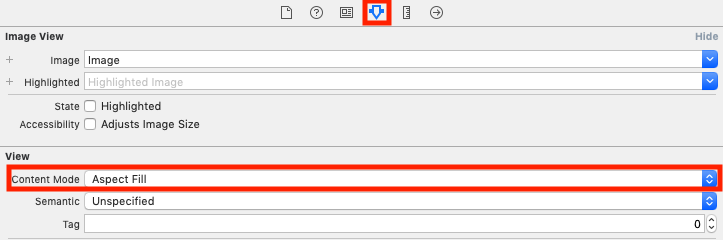
UIImageView を選択 → Attributes Inspector の View → Content Mode ドロップダウンから選択。値は Swift と完全一致します。
Auto Layout との組み合わせ
// プログラマティック制約 + scaleAspectFill
let imageView = UIImageView()
imageView.contentMode = .scaleAspectFill
imageView.clipsToBounds = true
imageView.translatesAutoresizingMaskIntoConstraints = false
view.addSubview(imageView)

NSLayoutConstraint.activate([
    imageView.topAnchor.constraint(equalTo: view.safeAreaLayoutGuide.topAnchor),
    imageView.leadingAnchor.constraint(equalTo: view.leadingAnchor),
    imageView.trailingAnchor.constraint(equalTo: view.trailingAnchor),
    imageView.heightAnchor.constraint(equalTo: imageView.widthAnchor, multiplier: 9/16),
])
SwiftUI での対応
SwiftUI では Image が UIKit の UIImageView 相当です。contentMode は aspectRatio(contentMode:) で指定します。
import SwiftUI

struct ContentView: View {
    var body: some View {
        // scaleAspectFit 相当
        Image("sample")
            .resizable()
            .aspectRatio(contentMode: .fit)
            .frame(width: 200, height: 200)

        // scaleAspectFill 相当
        Image("sample")
            .resizable()
            .aspectRatio(contentMode: .fill)
            .frame(width: 200, height: 200)
            .clipped()   // ★ 切り抜き

        // scaleToFill 相当
        Image("sample")
            .resizable()
            .frame(width: 200, height: 200)
    }
}| UIKit (UIImageView.contentMode) | SwiftUI |
|---|---|
| .scaleToFill | .resizable() のみ |
| .scaleAspectFit | .resizable().aspectRatio(contentMode: .fit) |
| .scaleAspectFill + clipsToBounds | .resizable().aspectRatio(contentMode: .fill).clipped() |
| .center 等 | 位置調整は frame + alignment で代替 |
FAQ
Q: scaleAspectFill で画像がはみ出して隣のレイアウトが崩れる
A: clipsToBounds = true を必ず設定してください。Storyboard では「Clip to Bounds」チェック。SwiftUI では .clipped() 修飾子。
Q: 縦長と横長で動的に切り替えたい
A: image.size.width > image.size.height ? .scaleAspectFill : .scaleAspectFit のように判定して切替えます。
Q: 画像がぼやける
A: 元画像が View サイズより小さい場合、拡大されてぼやけます。Retina に合わせた @2x / @3x 画像を用意するか、ベクター(PDF/SVG)を使ってください。