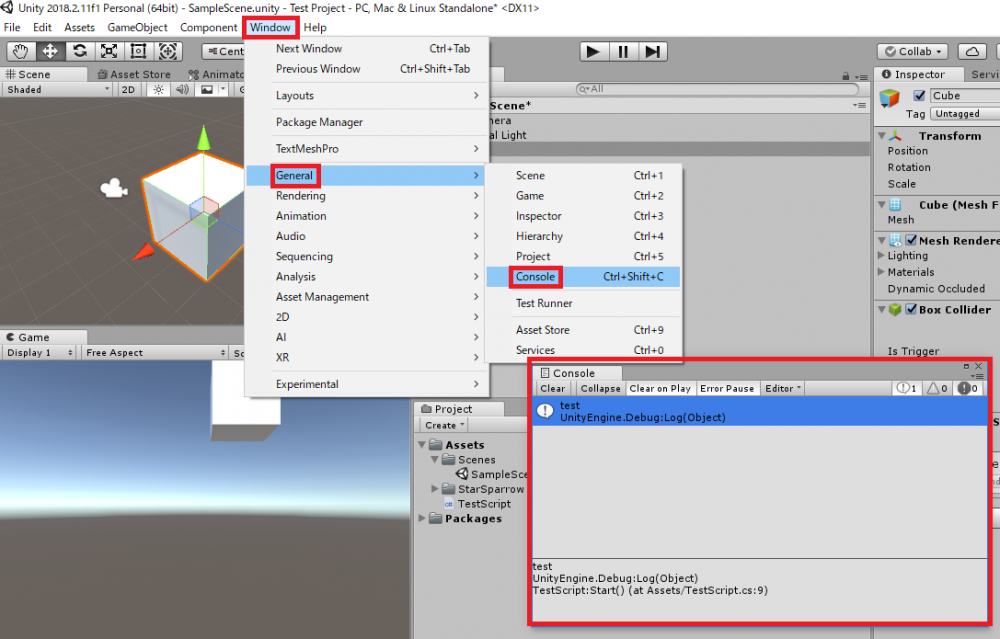
タイトル: コンソールへのログ出力方法
SEOタイトル: Unity Debug.Log 完全ガイド — コンソール出力とデバッグ
| この記事の要点 |
|
Debug.Log の基本
Unity の Console ウィンドウに文字列を出力する最も簡単な方法です。MonoBehaviour を継承しているクラスでも、純粋な C# クラスでも使えます。
using UnityEngine;

public class Player : MonoBehaviour {
    void Start() {
        Debug.Log("Player Start");                // 白
        Debug.LogWarning("HP low!");              // 黄
        Debug.LogError("Cannot find weapon!");    // 赤

        // 例外のスタックトレース付き
        try {
            throw new System.InvalidOperationException("bad state");
        } catch (System.Exception e) {
            Debug.LogException(e);
        }
    }
}
ログレベルと表示
| メソッド | 色 | 用途 |
|---|---|---|
Debug.Log | 白 | 一般情報・デバッグ確認 |
Debug.LogWarning | 黄 | 異常ではないが注意したい状況 |
Debug.LogError | 赤 | エラー (Pause on Error 有効時にゲーム停止) |
Debug.LogAssertion | 赤 | Assert 失敗時の出力 |
Debug.LogException | 赤 | 例外オブジェクトを出力 (スタックトレース付き) |
Console ウィンドウ右上のアイコンでレベル別フィルタが可能。Error Pause ボタンを ON にすると LogError 発生時に自動でゲームが Pause します。
変数を埋め込む
using UnityEngine;

public class Mover : MonoBehaviour {
    void Update() {
        // C# 6+ 文字列補間 ($ プレフィックス)
        Debug.Log($"pos: {transform.position}, time: {Time.time:F2}");

        // 旧来の string.Format / 連結
        Debug.Log(string.Format("pos: {0}", transform.position));
        Debug.Log("pos: " + transform.position);

        // Object 参照を渡すと Console でクリック時にハイライト
        Debug.Log("clicked", this.gameObject);
    }
}
Scene ビューに線を描画 (Debug.DrawLine / DrawRay)
テキスト出力ではなく Scene ビューに視覚的にラインを描画してデバッグできます:
using UnityEngine;

public class Sight : MonoBehaviour {
    public Transform target;

    void Update() {
        // 始点 → 終点 のライン (1 フレームのみ表示)
        Debug.DrawLine(transform.position, target.position, Color.red);

        // 始点から方向へのレイ
        Debug.DrawRay(transform.position, transform.forward * 5f, Color.green);

        // 永続表示 (duration 指定、depthTest=false で隠面も描画)
        Debug.DrawLine(Vector3.zero, Vector3.up, Color.yellow, 5f, false);
    }
}
※ Game ビューには表示されません (Scene ビュー専用)。Gizmos.DrawLine は OnDrawGizmos 内専用で永続表示可能です。
本番ビルドからログを除外
Debug.Log は本番ビルドでも実行されるとパフォーマンスを食う (文字列の boxing / GC alloc / ファイル出力)。本番では除外したいケースが多いです:
using System.Diagnostics;
using UnityDebug = UnityEngine.Debug;

public static class DLog {
    [Conditional("UNITY_EDITOR"), Conditional("DEVELOPMENT_BUILD")]
    public static void Log(object msg) {
        UnityDebug.Log(msg);
    }

    [Conditional("UNITY_EDITOR"), Conditional("DEVELOPMENT_BUILD")]
    public static void LogWarning(object msg) {
        UnityDebug.LogWarning(msg);
    }
}

// 利用
DLog.Log("これは Editor / Development Build でのみ出力");
// ↑ Release ビルドでは呼び出しごと削除される (引数評価もスキップ)
[Conditional] 属性は引数評価もコンパイラがスキップするため、$"..." 文字列補間の GC alloc も発生しません。これが #if UNITY_EDITOR より優れる点。
ログをファイルに書き出す
using System.IO;
using UnityEngine;

public static class FileLogger {
    private static string path = Path.Combine(Application.persistentDataPath, "game.log");

    static FileLogger() {
        Application.logMessageReceived += OnLog;
    }

    private static void OnLog(string condition, string stackTrace, LogType type) {
        File.AppendAllText(path,
            $"[{System.DateTime.Now:HH:mm:ss}] {type}: {condition}\n{stackTrace}\n");
    }
}
Player.log の場所 (ビルド済アプリのログ)
| プラットフォーム | パス |
|---|---|
| Windows | %USERPROFILE%\AppData\LocalLow\<company>\<product>\Player.log |
| macOS | ~/Library/Logs/<company>/<product>/Player.log |
| Linux | ~/.config/unity3d/<company>/<product>/Player.log |
| Android | adb logcat -s Unity で取得 |
| iOS | Xcode の Devices & Simulators → デバイスログ |
Console ウィンドウの便利機能
- Clear on Play: 再生開始時に自動クリア
- Collapse: 同一ログをまとめて回数だけ表示
- ダブルクリックでスタックトレースの該当行にジャンプ
- Project Settings → Player → Stack Trace でレベル別にスタックトレース取得可否を設定 (本番では Off 推奨)
FAQ
Q: Debug.Log が表示されない
A: Console 右上の レベルフィルタが OFF になっていないか確認。または別シーンで実行している可能性。
Q: ビルドした EXE のログを見たい
A: 上記 Player.log を確認。Windows なら --log-file ./game.log 起動オプションでパス指定可。
Q: Debug.Log は遅い?
A: 遅いです。Update 内で毎フレーム呼ぶと顕著にカクつきます。本番では [Conditional] wrapper で除外を推奨。
Q: Color や HTML で装飾したい
A: Debug.Log("<color=red>Hit!</color>") で Rich Text 装飾可。Console の Use Player Log と同じ書式。
📸 参考画像
※ 旧バージョンから引き継いだ参考画像です。手順・図解の補助としてご覧ください。